
Check whether your captions, faces and logos will be hidden by TikTok, Instagram Reels or YouTube Shorts buttons before you post. Upload a photo or video, pick a platform, and the safe zone previewer shades the areas covered by the username, caption and like/share buttons. It runs in your browser, so your file is never uploaded.
Safe zone previewer
Frame your shot before you post.
to preview it here, or just check the guide zones below
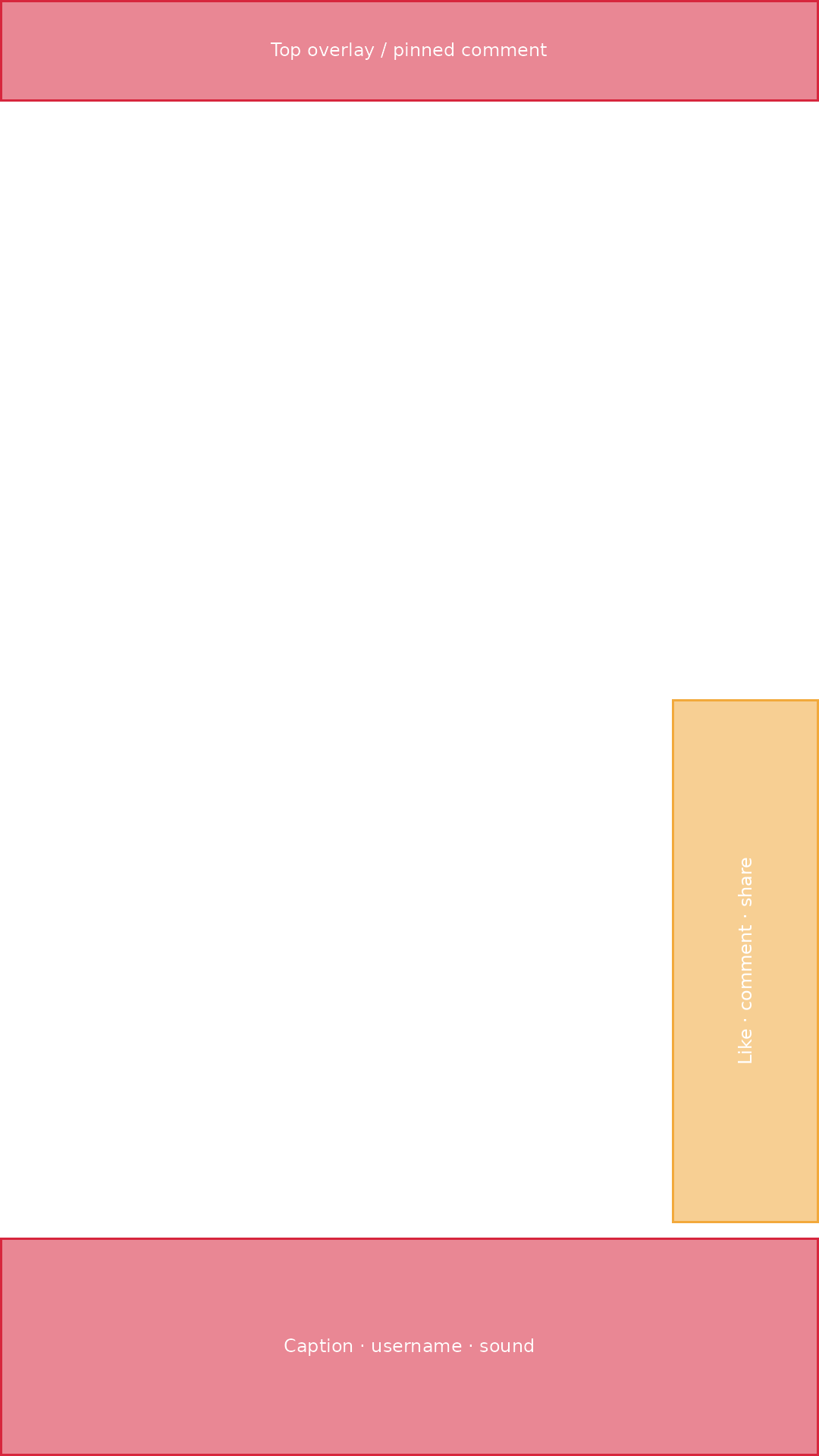
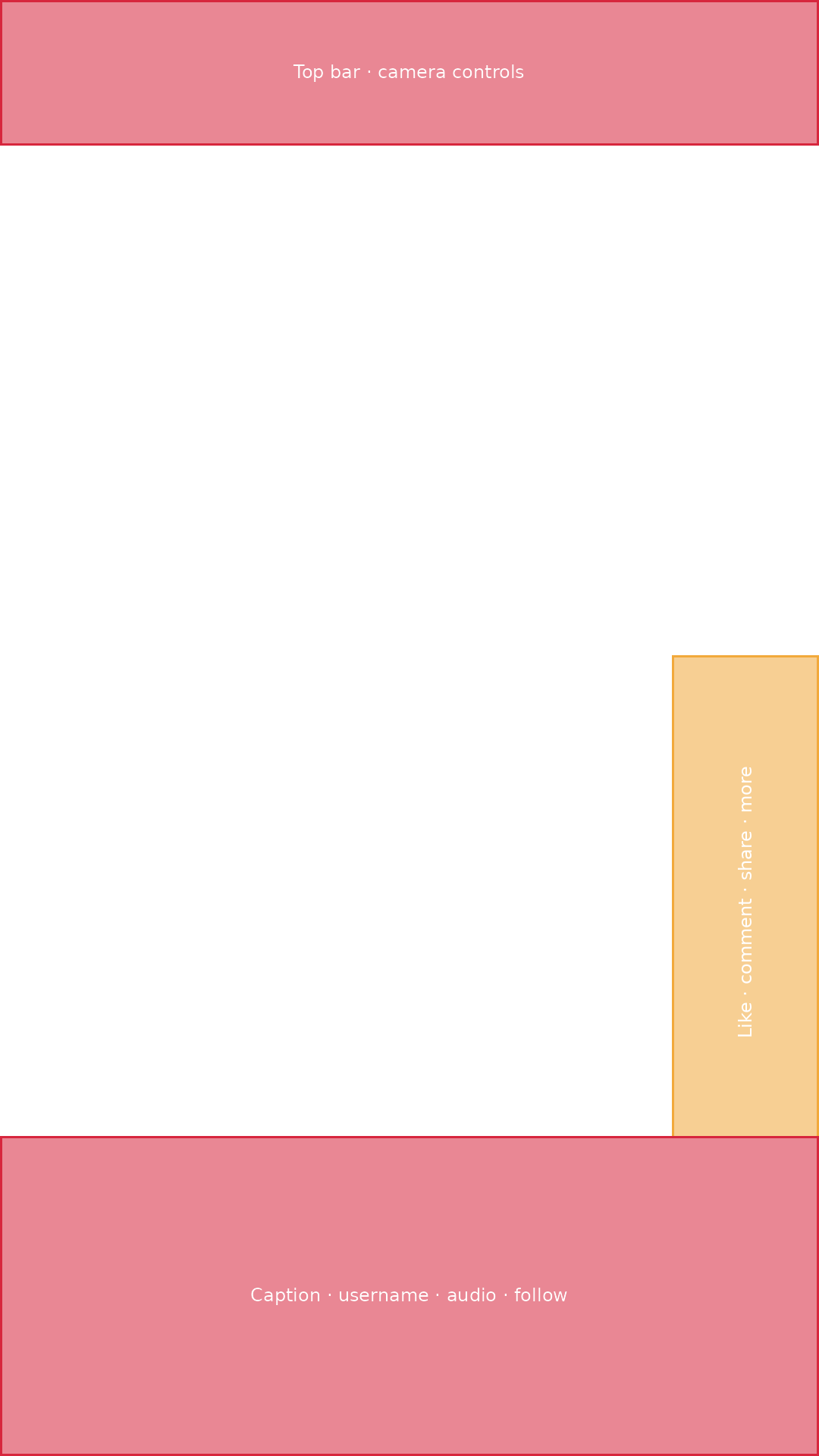
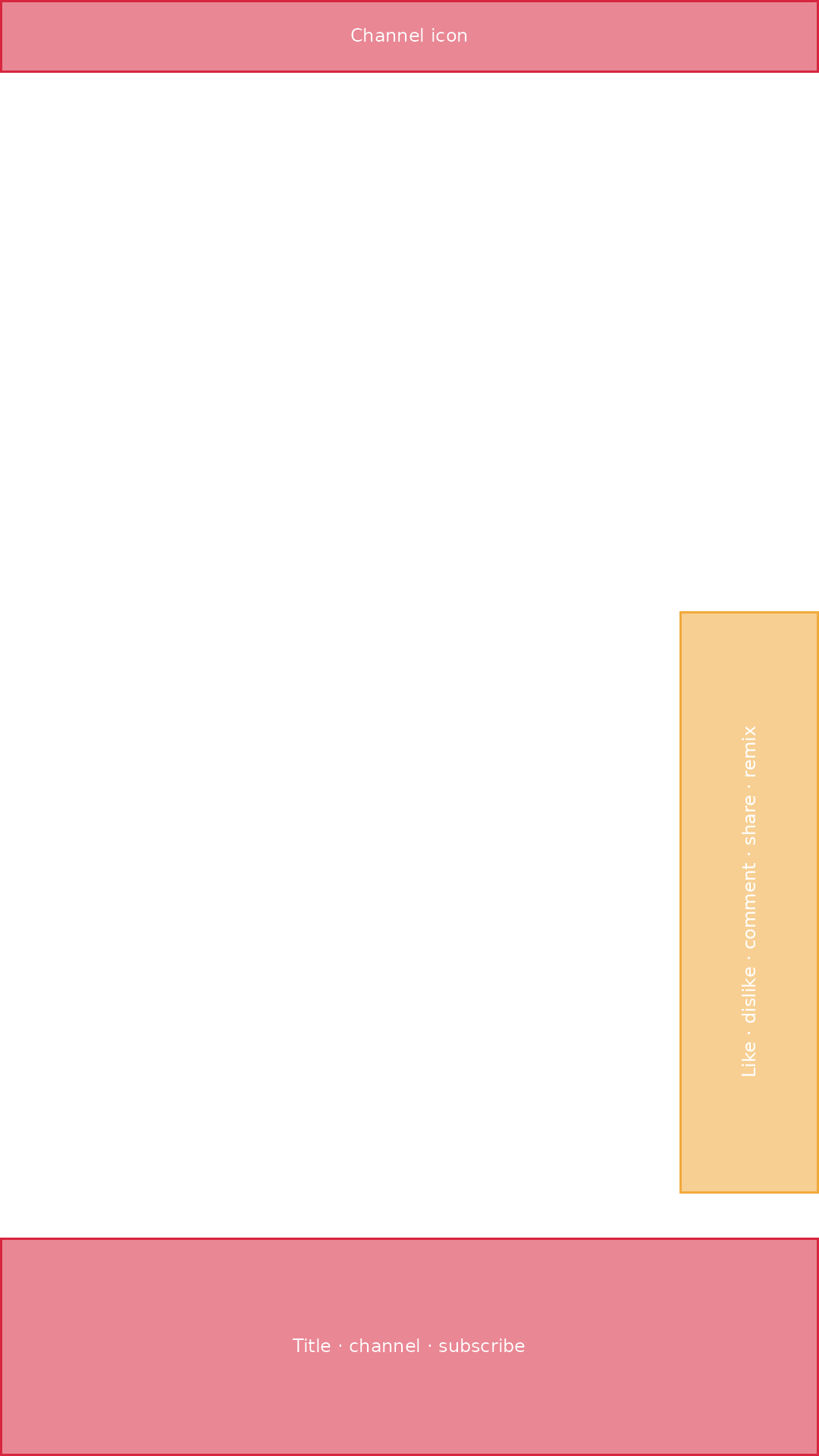
Free safe zone overlay PNGs (2026)
Prefer to check inside your editor? Download a transparent overlay for TikTok, Instagram Reels or YouTube Shorts, drop it on the top track in CapCut, Premiere Pro, DaVinci Resolve or Canva, and keep your text and faces out of the shaded areas. Each file is 1080 × 1920, the standard size for vertical video.
How this tool works
Pick the platform you’re posting to — TikTok, Instagram Reels, or YouTube Shorts — and the previewer overlays exactly where that app’s on-screen elements will sit on top of your video: captions, usernames, sound titles, and the like/comment/share icon column.
Upload your edited video and it plays right there in the tool, with the guide zones overlaid the entire time — use the normal play, pause, and scrub controls to check every moment of your edit, not just a single frame, so cuts, on-screen text, and movement all get checked against the real layout. You can also upload a single photo or thumbnail instead if that’s all you need to check.
Once you’re happy with the framing:
- Download guide overlay (transparent PNG) — just the zone markers, no image or video, ready to drop into CapCut, Premiere, or any editor as a reference layer while you frame or trim your shot
- Capture current frame (PNG) — pause your video (or use an uploaded photo) at the exact moment you want to check, and save that frame with the zones baked in — handy for flagging a specific moment or sharing a framing plan with a team or client
Why safe zones matter
Every short-form platform covers part of your video with its own interface. If your subject, key text, or a call-to-action lands in one of those zones, it gets partially or fully hidden the moment someone opens the app — no matter how good the shot looks in your editing software. Checking safe zones before you record (or before you export) means:
- Faces, product shots, and on-screen text stay fully visible
- Captions you burn in don’t collide with the platform’s own caption area
- You avoid re-shooting or re-editing after noticing something was covered post-publish
A note on accuracy
These zones are based on each platform’s current, commonly published layout — but every app updates its interface over time, and things like pinned comments, live badges, or seasonal UI tweaks can shift things slightly. Treat this as a strong planning guide rather than a pixel-perfect guarantee, and leave a small buffer around anything critical.
Frequently asked questions
Does this tool store or upload my video or images? No. Your video or photo plays and is processed entirely inside your browser — nothing is uploaded to a server, sent anywhere, or saved once you leave the page.
Can I check my whole video, or just one frame? Your whole video — upload it and it plays back normally with play, pause, and scrub controls, with the guide zones staying on top the entire time. Pause on any moment and use “Capture current frame” if you want to save that exact point as an image.
Which platform should I check if I am cross-posting the same video everywhere? Check the platform with the most coverage first (usually TikTok or Reels), then look at the others — if your key content survives the most restrictive layout, it’ll usually be safe everywhere.
Can I use this for horizontal video? This tool is built for the 9:16 vertical format used by TikTok, Reels, and Shorts. Horizontal video doesn’t have the same overlay pattern, so it isn’t covered here.
Is the overlay exact to the pixel? No — treat it as a close approximation based on typical layouts. Leave a small safety margin around anything essential.
Get more infos, on how to repurpose a video in tik tok, reels and shorts.